Storing Uploaded Files and Serving Them in Express
Introduction
Handling file uploads is a core feature for modern web applications, whether it's users uploading profile pictures, attaching PDFs, or sharing media. But once a file reaches your Node.js backend, what exactly happens to it?
In this blog, we'll break down the step-by-step logic of where uploaded files are stored, how to serve them back to the client using Express, and the security practices you must follow to keep your server safe.
Where Are Uploaded Files Stored?
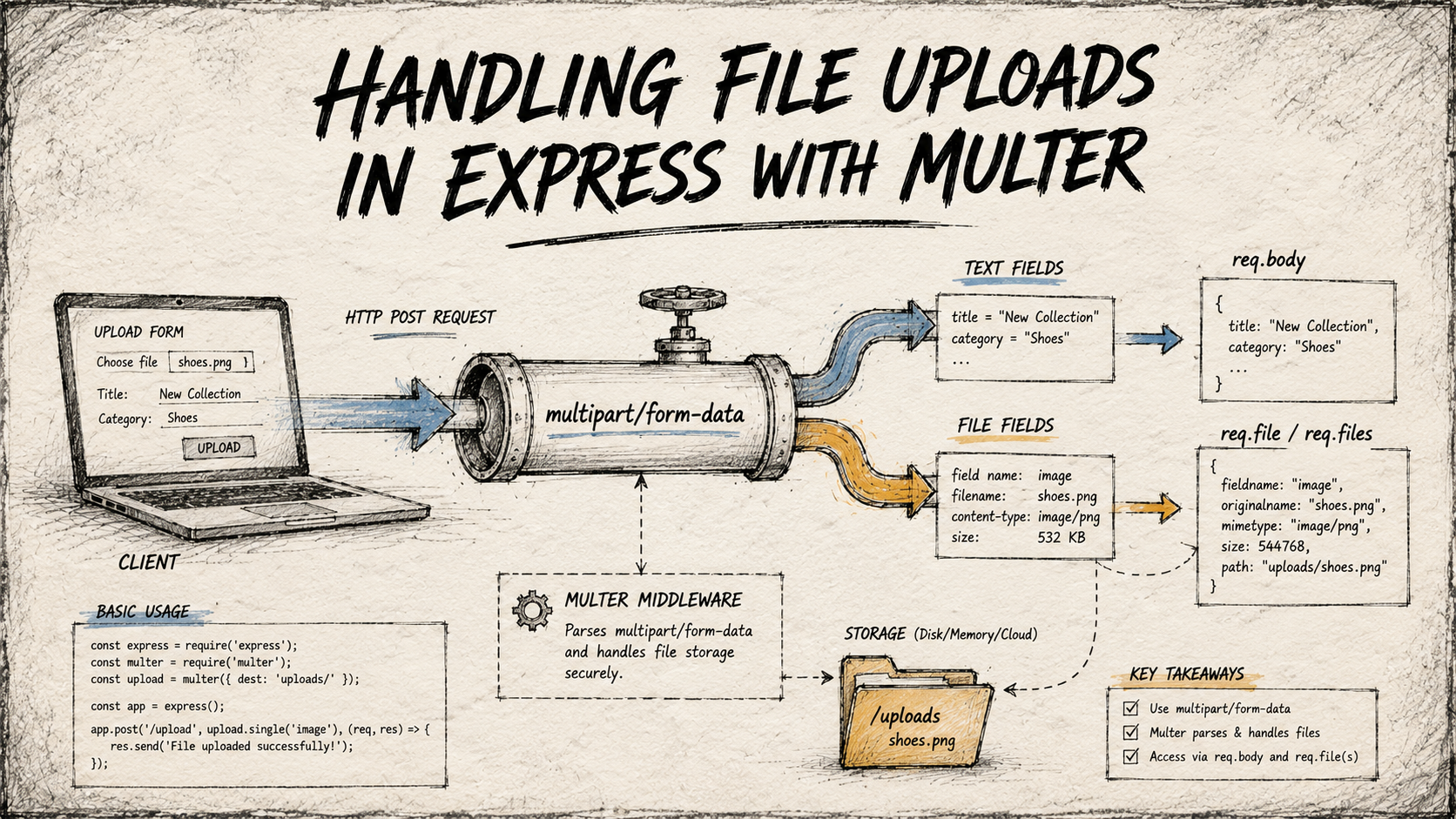
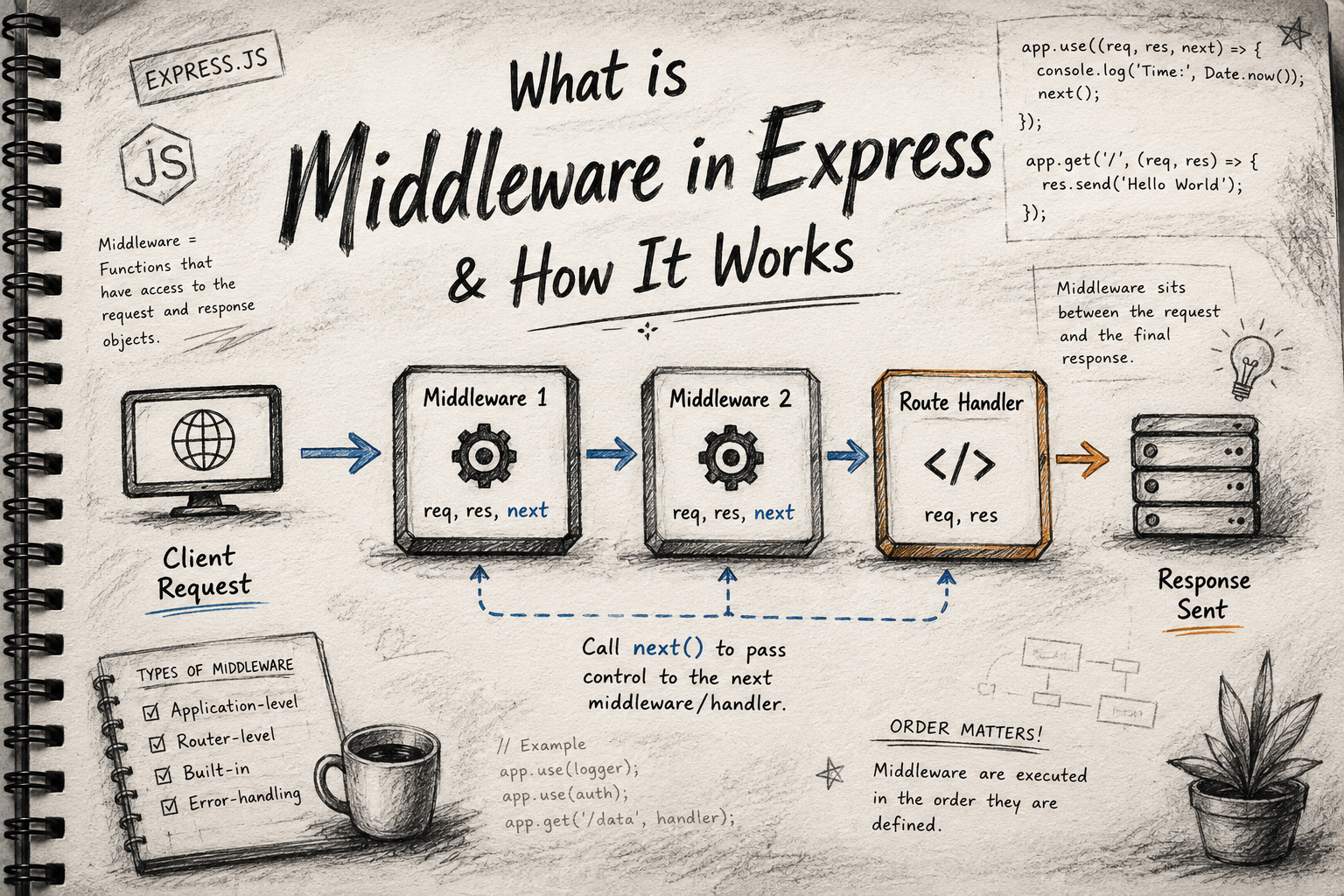
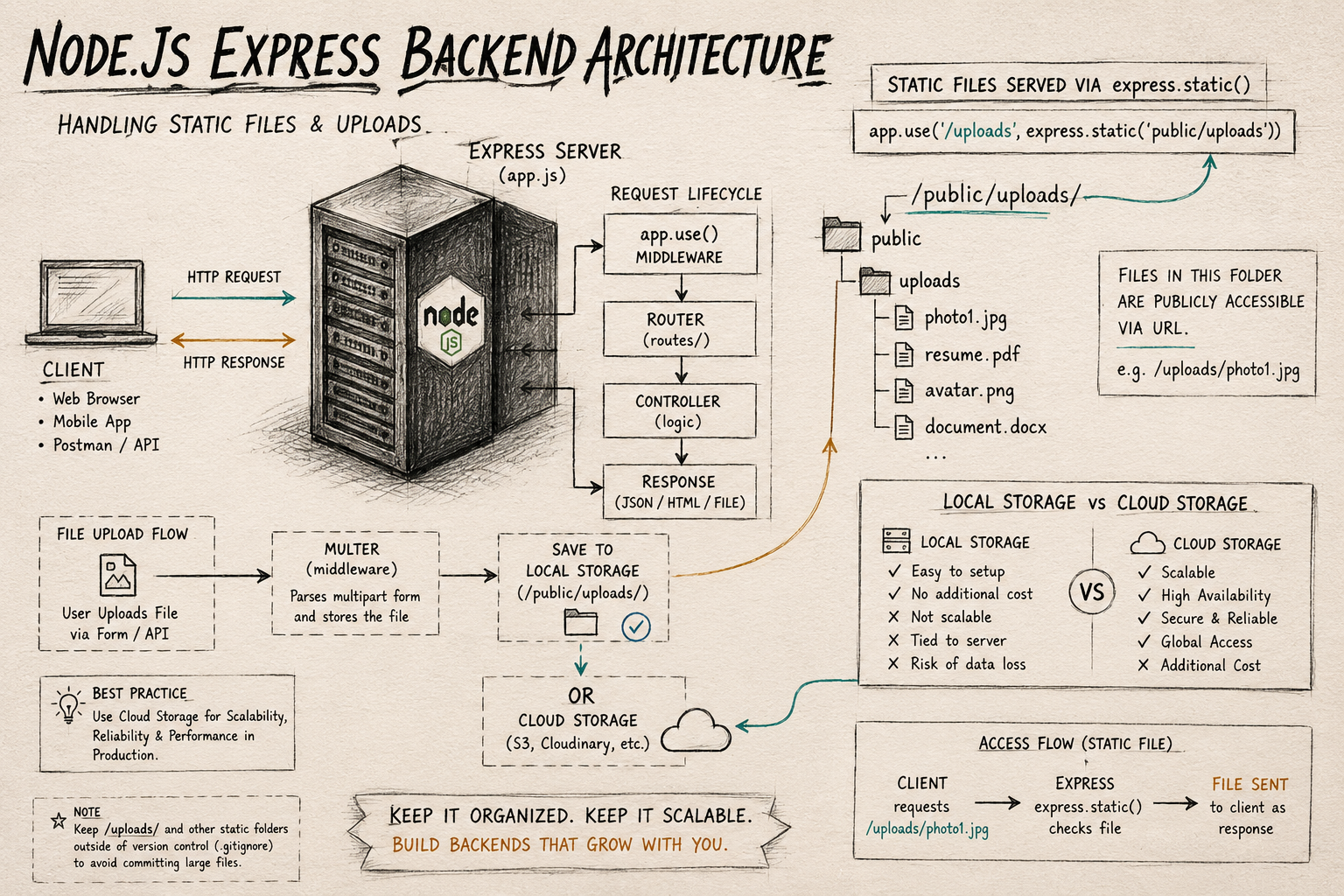
When a client sends a file to your Express server (usually parsed by a middleware like multer), the file needs a physical resting place. By default, you have two primary architectural choices: Local Storage and External Storage.
Local Storage vs. External Storage Concept
Local Storage This means saving the files directly onto the hard drive of the server hosting your Node.js application.
How it works: The file stream is piped directly into a directory within your project (e.g., a
/public/uploadsfolder).Pros: It is incredibly straightforward to set up and requires no third-party API keys or internet dependencies.
Cons: If your application scales and you run multiple server instances, they won't share the same local disk. Furthermore, heavy file storage can quickly eat up your server's disk space.
External Storage (Cloud) This involves sending the file to a dedicated cloud storage provider like AWS S3, Cloudinary, or Google Cloud Storage.
How it works: The server receives the file in a temporary memory buffer and immediately streams it to the external service.
Pros: Highly scalable, takes the storage load off your main server, and makes it easy to serve files across multiple server instances globally (often via a CDN).
Cons: Requires slightly more complex setup and network requests to transfer the files.
Structuring Your Local Storage
If you decide to handle files locally, maintaining a clean folder-based storage structure is critical for organization. A standard approach is to keep user-uploaded content completely separate from your application logic.
Here is an idea of how to structure your project directory:
my-express-app/
├── node_modules/
├── src/
│   ├── controllers/
│   ├── routes/
│   └── index.js
├── public/                 <-- The root folder exposed to the web
│   ├── css/
│   ├── js/
│   └── uploads/            <-- Where uploaded files are saved
│       ├── profiles/       (e.g., avatar-123.jpg)
│       └── documents/      (e.g., resume-456.pdf)
├── package.json
└── .gitignore
Serving Static Files in Express
Once a file is safely stored on your server, how does a user actually view it in their browser? This is where the concept of static file serving comes in.
A static file is any file that the server sends back to the client exactly as it is stored on the disk, without modifying it or processing any logic. This includes images, plain text files, CSS, and client-side JavaScript.
Express doesn't allow external access to your project folders by default for security reasons. You have to explicitly tell Express which folders are safe to expose.
Accessing Uploaded Files via URL
To make your uploads folder accessible, you map a specific URL path to the directory on your server. Express provides a built-in middleware for this step-by-step process: express.static.
Instead of writing out a massive configuration, the core idea boils down to this single step in your main server file:
const express = require('express');
const app = express();
const path = require('path');

// Step 1: Define the physical path to your uploads directory
const uploadDirectory = path.join(__dirname, 'public/uploads');

// Step 2: Tell Express to serve files from this directory
// whenever a request hits the '/media' URL route
app.use('/media', express.static(uploadDirectory));
How it works in practice: If you save an image to public/uploads/profiles/avatar.png, a user can now access that exact file in their browser by navigating to: http://localhost:3000/media/profiles/avatar.png
Security Considerations for Uploads: Safe File Handling Practices
Handling file uploads opens up significant security vulnerabilities if not done carefully. Never trust user input.
Here are the core safe file handling practices you should implement:
Validate MIME Types: Never rely on the file extension (like
.jpg) because a user can easily rename a malicious.exeor.shscript tovirus.jpg. Always check the file's actual MIME type and reject anything that doesn't match your expected formats.Enforce File Size Limits: Prevent Denial of Service (DoS) attacks by capping the maximum file size. If you only expect a profile picture, restrict the upload limit to 2MB or 5MB so malicious actors can't flood your server with massive 10GB junk files.
Sanitize and Rename Files: Never keep the original filename provided by the user. It might contain special characters, directory traversal attempts (
../../../etc/passwd), or duplicate names. Always generate a unique, random string (like a UUID or a timestamp hash) for the saved file.Prevent Execution: Ensure that the directory where you store uploads does not have execution permissions. If a user somehow bypasses your filters and uploads a script, they shouldn't be able to trigger it via a URL.